June 3, 2021

Schedule Stories In Facebook Business Suite

Previously companies have left Social Media as an afterthought or to a junior member of the team. However, as more and more businesses view Social Media as a critical area of their marketing mix, it’s essential to understand how to get the most out of each platform.
 

One of the best ways of ensuring Social Media is not only at the forefront of the marketing strategy but successfully deployed is to plan and schedule content. By knowing what is due to be published, when and where, businesses can dedicated time each day/week/month depending on what works best for them to schedule content, conduct social listening and engage with their audiences. 

Understandably, businesses with smaller budgets will want to keep their Social Media outgoings as low as possible, especially if they’re not sure how actually to calculate ROI (Return On Investment). However, thankfully once again, Facebook has made it easier than ever to schedule content to their platforms. 

Scheduling to Facebook Pages has been available within the platform for years, although this has more recently moved to Creator Studio. Scheduling to Instagram, however, is a reasonably recent addition. And now, the wishes of every Social Media Manager have been granted, and Facebook’s Business Suite enables users to schedule not only Post but Stories too! 
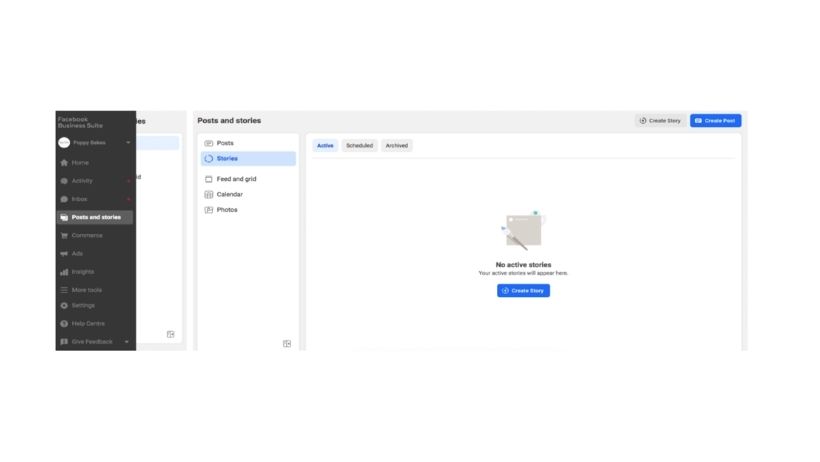
Within Facebook Business Manager, you’ll find a link to Facebook Business Suite, and here you can connect and manage your Facebook and Instagram accounts (and more). Below you’ll see users can create Facebook and Instagram Posts, Stories and manage their content Calendar and Photo Library. Within the same platform, businesses can manage their comments and inbox as well as review account insights.
 

How To Schedule A Story

Simply click ‘Create Story’ in the top right corner of the screen and choose whether you’d like to share to Facebook and/or Instagram.
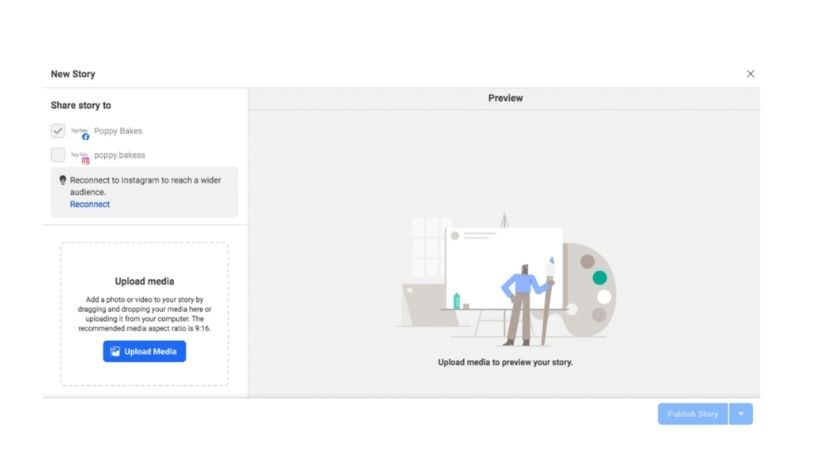
Schedule stories to Facebook
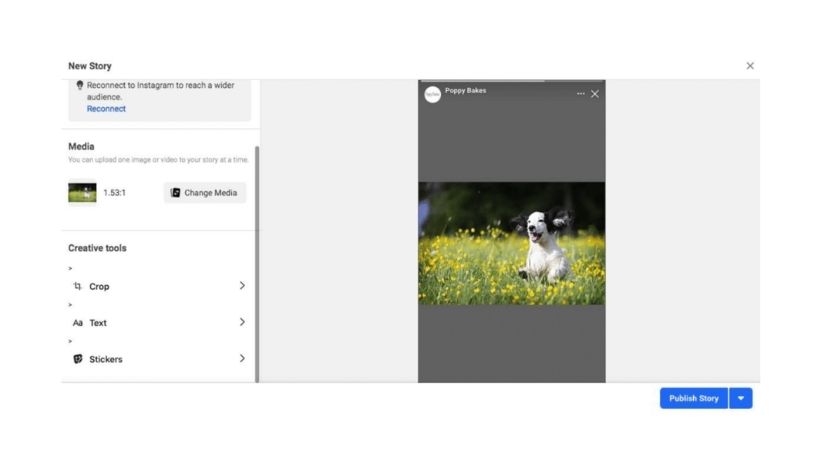
Upload your Media – it’s best to source your desired imagery at the same time as you write the copy, so when it comes to scheduling, you have everything you need. You’ll see here that you can upload one image or video to your Story at a time.
 
upload your media

If your image isn’t the right size for the Story format, then fear not, for there is a built-in Crop feature in Business Suite. Simply choose from Original, Square or Full-screen Vertical. We like the image to fill the screen, but it’s entirely up to you!
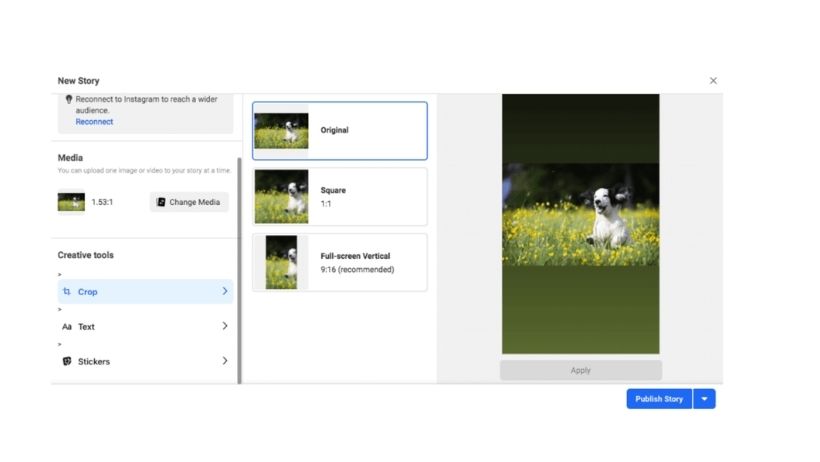
resize your image
If you do select the Full-screen Vertical option, for example, you will be able to move the crop selection box over the image. Before you click ‘Apply’, Facebook will warn you that you will not be able to revert any changes. This shouldn’t be a problem as you’ll still have the original file saved on your computer.
 
resize your image
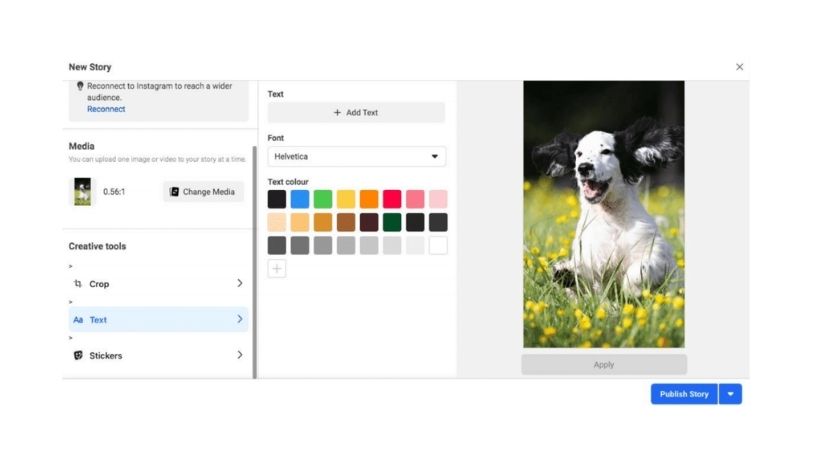
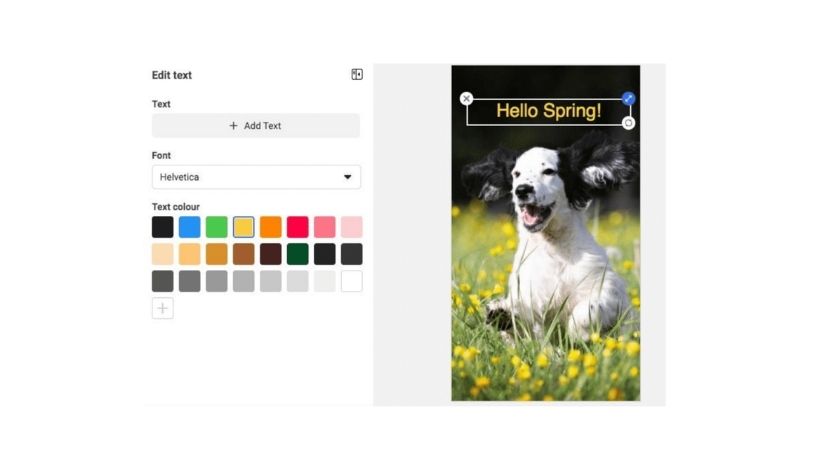
Next, you can add a text overlay to your image. Here you can choose where your text will appear, the font and colour. Again, it’s best to have your text prewritten and proofed, ready to be copied and pasted onto your Story to save time, stay on message and reduce the risk of embarrassing errors.
 
Facebook and Instagram Stories don’t display on the screen of your audience for long, so play around with the positioning, font and colour scheme to ensure your text is clear and easy to read.
 
choose font and colour
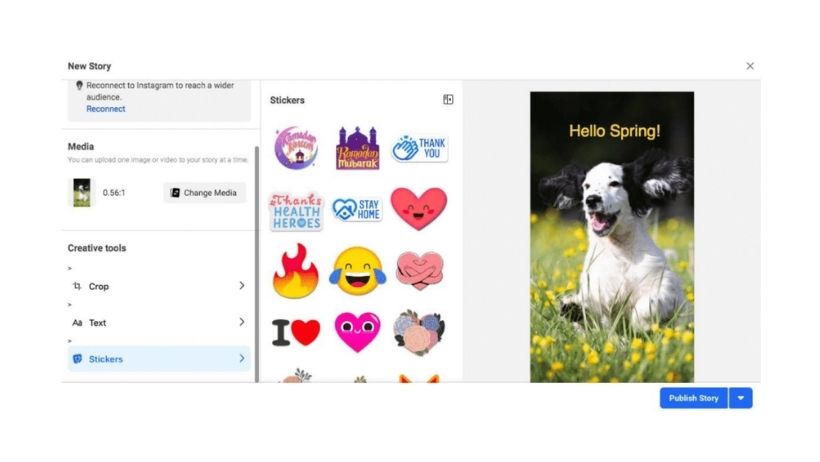
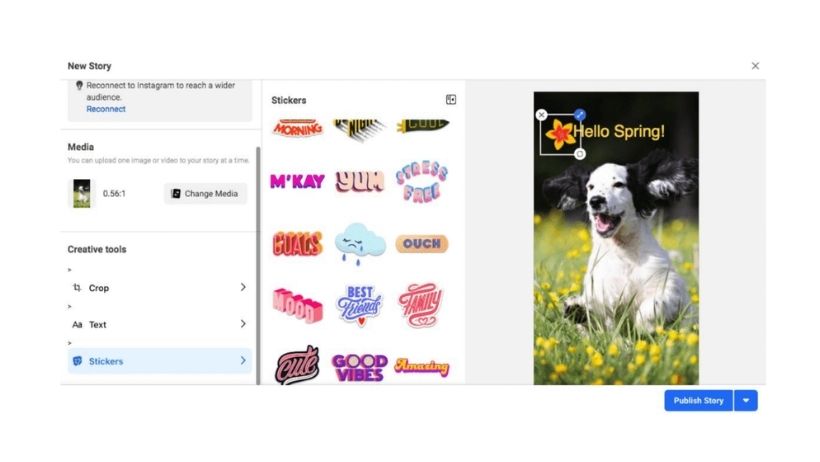
Next up: Stickers! Although the range available within Facebook Business Suite is somewhat limited compared to when users share a story from within the Facebook or Instagram App, there is still a reasonable selection to choose from.
 
stickers on facebook stories
As with the text, once you select your desired sticker(s), you can move them about on your image to see where works best.
 

Don’t forget to click ‘Apply’ after adding your text and/or stickers to ensure all changes to your media are saved.

When you’re happy with your creative, you’re then able to select ‘Publish Story’, which will share the creative instantly or, by clicking the down arrow to the right, ‘Schedule Story’.
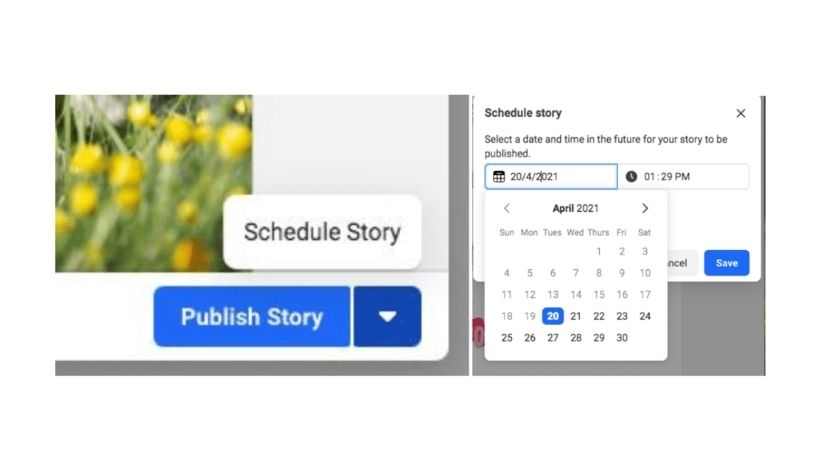
Publish story - Facebook business suite

Once you have published (or scheduled) your Story, you will be able to see it within the Facebook Business Suite platform.
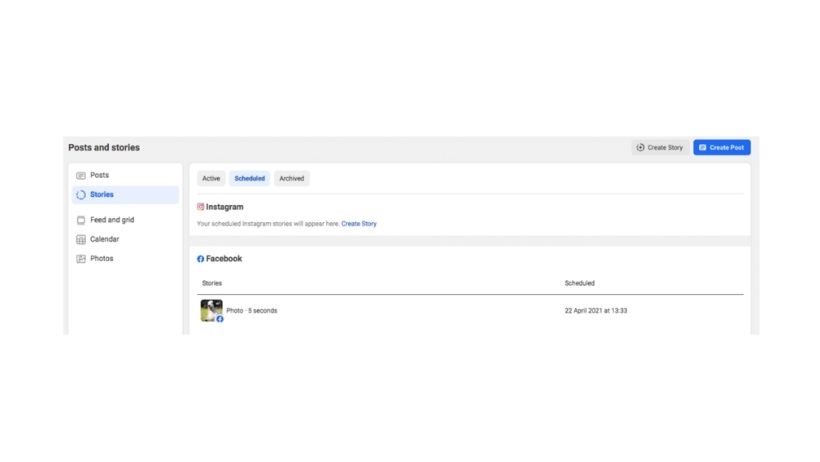
Facebook business suite view

If needed, you can choose to Reschedule, Publish Now or Delete your story.

Once your Story is live, you will also be able to see how long it has left, what date it was published and how many views it had. 
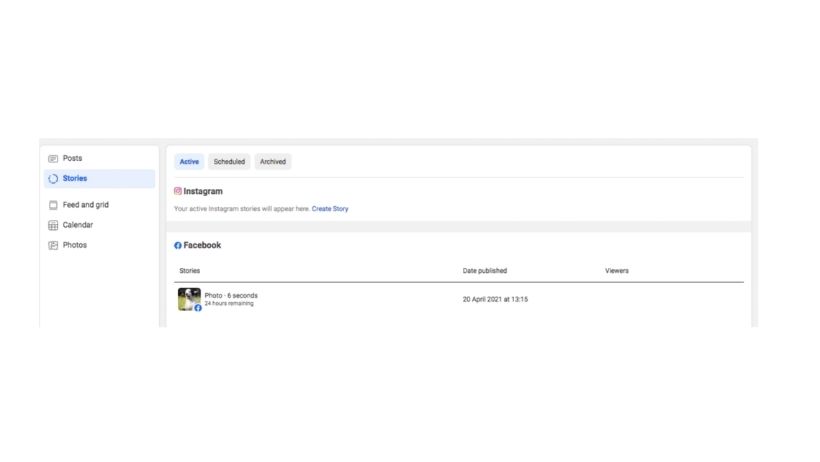
Although businesses may currently be sharing Stories manually throughout their day, this can be hard to manage and consistently commit to for those handling several accounts. It’s never been easier to schedule and share Facebook and Instagram Stories from your desktop so head over to Facebook Business Suite and give it a go!
 
Recent Posts
How To Manage A Twitter Account

How To Manage A Twitter Account

Twitter was first launched back in 2006 and within just six years had over 100 million users per day, with 340 million tweets a day. Fast forward to the present day, and there are over 330 million monthly active users across the platform and 145 million daily active...

How To Set Up A Facebook Shop

How To Set Up A Facebook Shop

Facebook Shop has recently rolled out new features. Take advantage of that now. There are many features available on Facebook that businesses can, and should, utilise. The Facebook Page feature is a great marketing tool to share content and connect with your audience,...

How to delete a Twitter Account

How to delete a Twitter Account

There are several reasons as to why you may choose to delete your Twitter account, the most prominent being you’re just done with Twitter.  If you’re looking to delete Twitter to start again from scratch then before you do this, don’t forget that you can change your...

What Is A Social Media Manager?

What Is A Social Media Manager?

A Social Media Management role incorporates all things Social Media, as you would expect. However, there is a lot more to Social Media than meets the eye. A Social Media Manager is responsible for mapping out a digital strategy for their company or clients, which will...

Google My Business: Claiming Locations

Google My Business: Claiming Locations

If your business relies on customers visiting a physical location, it’s essential to make it as easy as possible to find you offline, online which means adding yourself to ‘the map’ by utilising Google My Business locations.  What Is Google My Business? ‘Google Local’...

Follow us

linkedin