
There is a range of reasons that you may want to delete a Facebook business page; the information may not be relevant anymore, or you already have another page for the same business. However, many people are unaware that there are more options on offer than permanently deleting a Facebook business page! Facebook gives users the option of permanently deleting a page, unpublishing the page, or merging the page with another.
This means that you should decide carefully which option to take when it comes to organising your Facebook business page. Whichever option you choose, there is an easy way to find business settings so that you can remove, merge or unpublish your page.
Here is our guide to editing and removing your Facebook page.
Which Option is Best for Me?
You may have only just found out that Facebook gives users the option to unpublish a page or merge it with another. What do you choose now? Although Facebook gives users 14 days to change their mind once they have chosen to permanently delete a Facebook business page, once the 14 days has passed, there is no going back on your decision! This is why it is important to understand why you want to remove the page, and if there is a better option for you and your business.
“I don’t have time to post content and update the page“ – We highly recommend choosing to unpublish your Facebook page if this is the case for you; you may be able to find someone to help you in the future, or have more time available, which is why it is better to keep the page than permanently delete it. If you find after a long period of time that the page no longer serves much purpose, then sure, go ahead and remove it!
“The page is for an old event or business, I don’t need it anymore” – If your page is old and the business has closed down or the page was advertising a past event, it is a good decision to delete the Facebook business page permanently.
“My employees already set up another Facebook page for my business, so now there are two of the same page” – This is a great example of a time you should merge the two pages! You will need admin rights to both, but once you have them you can simply merge the two via the page settings.
These examples should help you make the decision as to whether the remove page option is right for you. If you have lots of valuable content on your Facebook business page that may come in handy for the future then don’t risk losing it!
How Do I Choose to Permanently Delete the Page?
So you have made a decision and want to close down the Facebook business page. Here’s how you can do so in a few simple steps!
iOS or Android
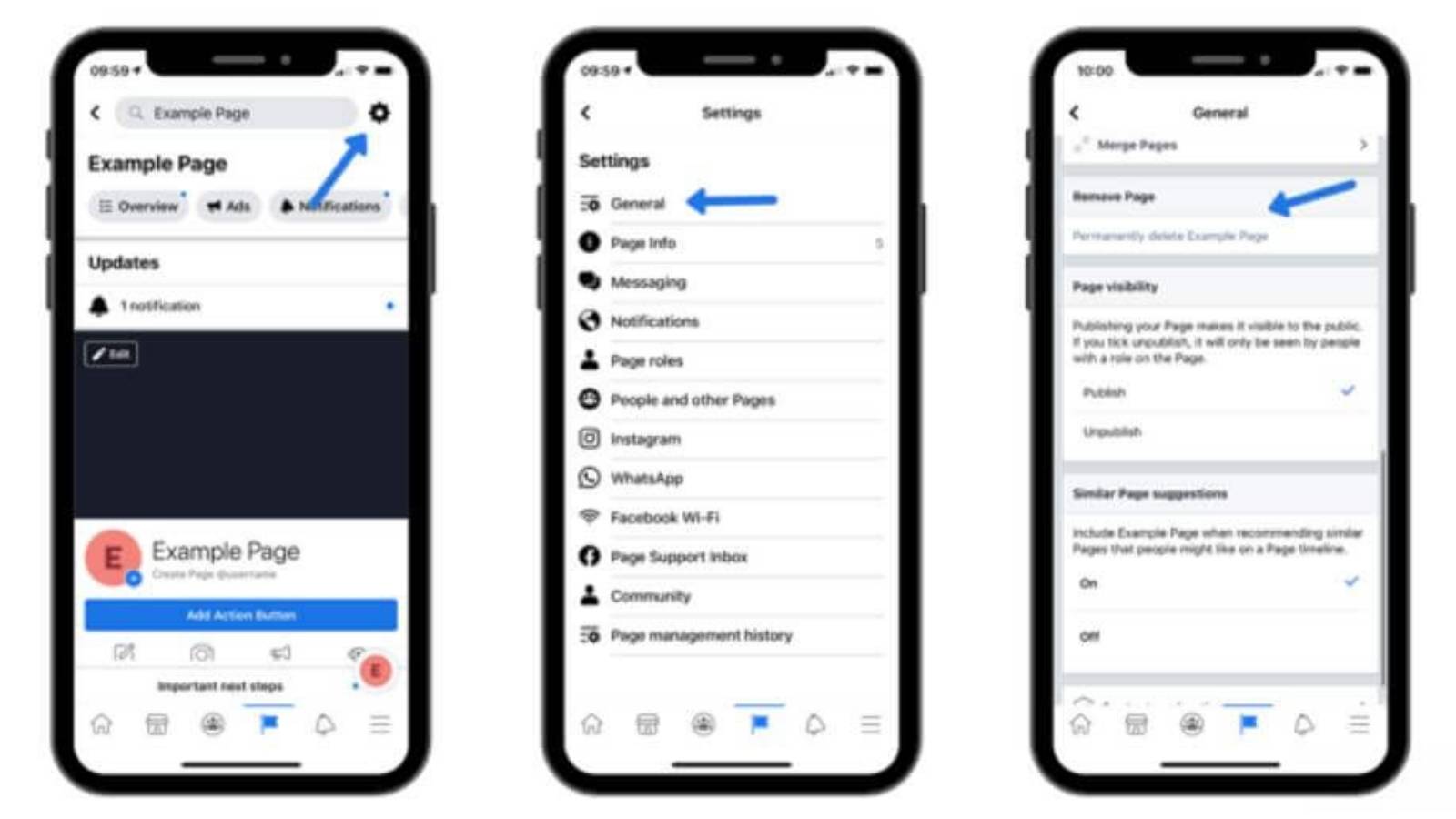
To delete a page on your smartphone, click on the Facebook app. At the bottom of the app, there will be a menu of six different icons.
The fourth icon should be a flag icon, which indicates ‘Pages’.
Once you have clicked on this icon, you will be able to see all of the pages you manage. Find and select the page that you want to remove.
By now you should be on the page you want to delete; locate the settings icon in the top right-hand corner of the screen.
Click on ‘General’ and scroll down to find the option to Remove page.
Facebook will confirm that the page has been deleted once you have clicked to do so.
Desktop
To remove a Facebook business page via desktop, make sure you are signed into your Facebook account. You should be able to see your newsfeed, and a menu on the left hand side of the screen. Locate the ‘Pages’ icon and select the Facebook business page you would like to delete. Once on the page, you should see another left hand menu with the heading ‘Manage Page’. Scroll to the bottom of the menu and you will find the ‘Settings’ link.

There is a ‘Remove Page’ option at the bottom of the Settings page, simply click ‘Edit’ on this row and Delete (Page Name). Facebook will ask you to confirm that you would like to delete the page, and inform you that you have 14 days to restore it, if you change your mind.
How Do I Unpublish a Facebook Business Page?
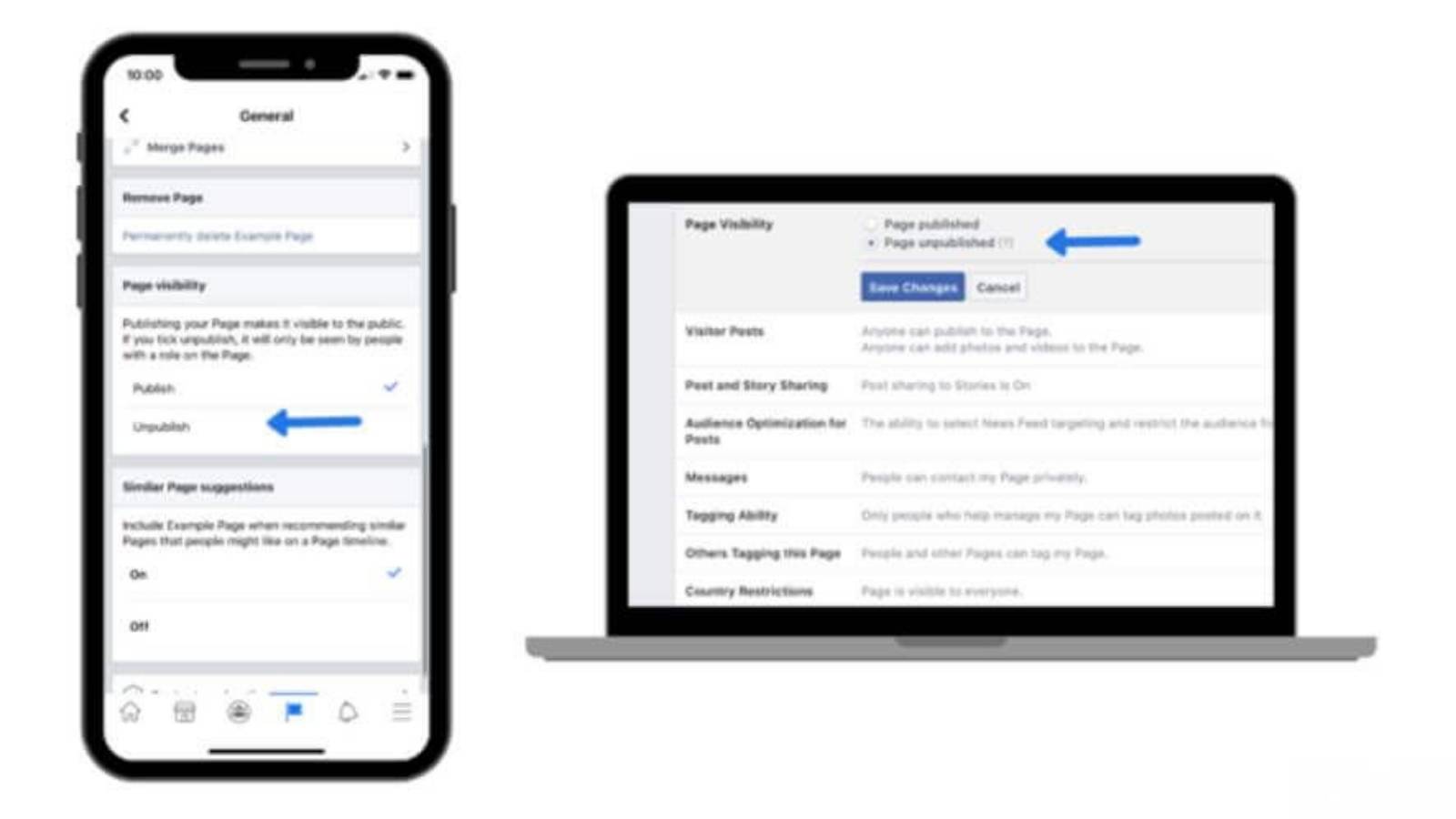
To unpublish a Facebook business page rather than delete it, follow the instructions above until you reach the page settings.
For iOS or Android on mobile, you will find a ‘Page Visibility’ heading with the option to either ‘Publish’ or ‘Unpublish’ your page. Simply click on the ‘Unpublish’ icon here. For desktop, the first heading on the settings page should be ‘Page Visibility’.
Click to ‘Edit’ on the right-hand side of this row, and choose ‘Page unpublished’. Save your changes and your page will become unpublished instantly!
Don’t worry – you can follow the same instructions to publish your page again.
How Do I Merge Two Pages?
Merging two Facebook pages is easy as long as you have admin access to both. If you don’t, ask the employees running the page to add you as an admin.
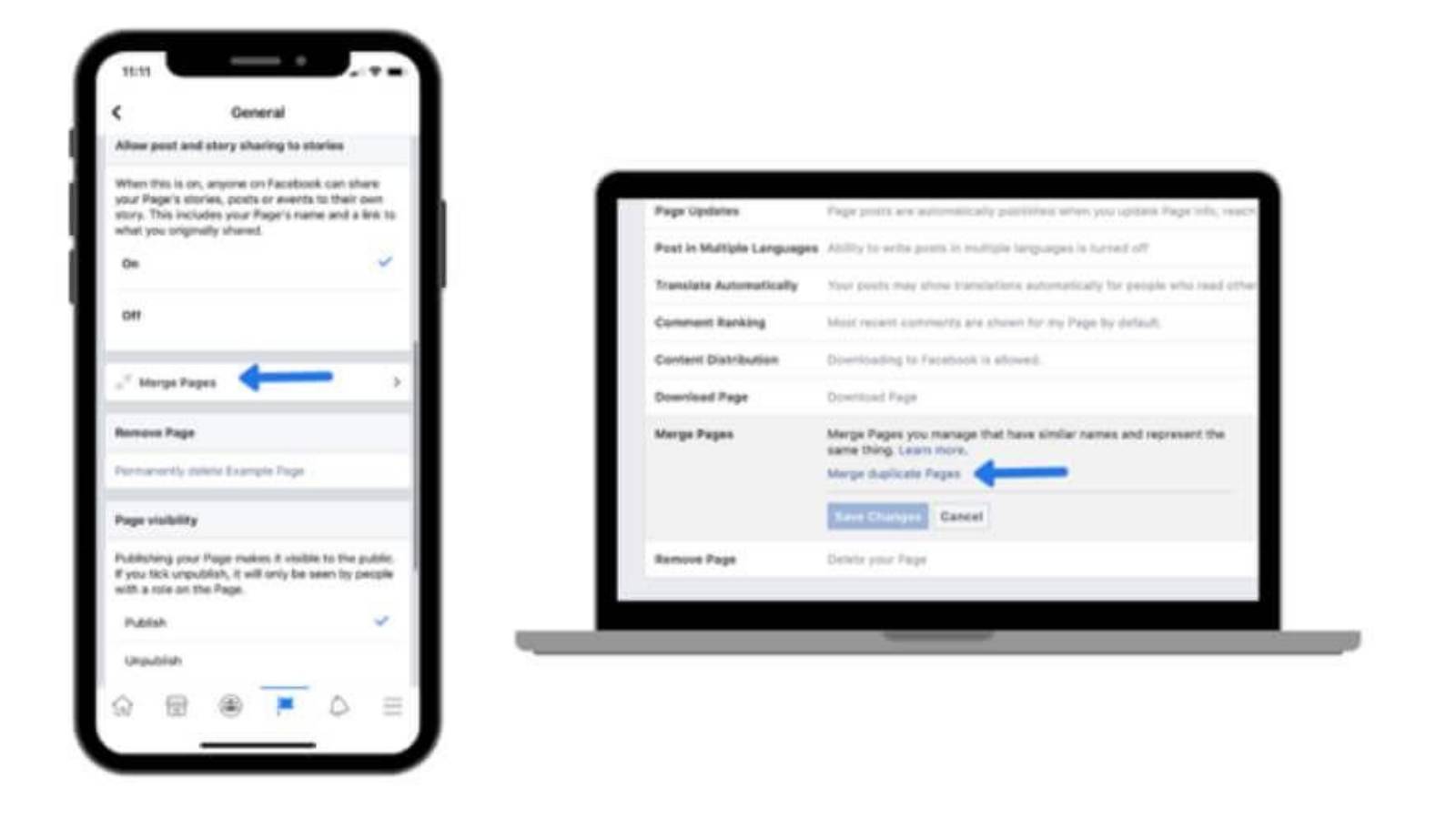
Once you have this access to both business accounts, head to one of the pages and click on the settings.
For mobile, you will find a ‘Merge Pages’ link under the General tab. Facebook will ask you to re-enter your password to continue, and then give you the option to select two accounts pages you’d like to merge.
For desktop, you should find the ‘Merge Pages’ row towards the bottom of the settings page – click ‘Edit’ on the right-hand side of the row, enter your password to continue and follow the Facebook instructions on the screen.
Using Your Facebook Business Page for Marketing
We understand that it can be difficult to keep up with Facebook business page marketing, and using the Facebook business manager to create ads, post content and interact with your target audience. Many business owners simply don’t have the time to dedicate to Facebook marketing, or are unsure of where to start! Here at The Social Network, we provide clients with social media marketing, training and consultancy so your business page doesn’t have to sit there untouched. We can help increase your ROI and brand awareness through Facebook business manager campaigns, which is why rather than deleting a page you no longer have time for, you should get in touch!
If you are struggling to delete your Facebook Business page visit Facebooks help centre.
Contact us to find out how we can help you take your business account page to the next level.

Facebook groups, are they really that important?
Yes is the emphatic answer to this question. Facebook groups are becoming more important as we speak! Why? Well, over 1.4 billion people, more than half of Facebook's colossal user base, are users of a Facebook group every month. 200 million of these users are...

5 Ways to Engage Your Followers
Let's start 2019 with a bang! We are going to show you 5 great content ideas that you can do on any Social Media platform that's going to help with engagement. The first one is one that's quite overlooked by the majority of our clients and it's one that can...